The partial() function in the functools module is used to create a new callable object from a callable object having multiple parameters by fixing the values of certain parameters, thus creating a special variant of the original callable object.
This technique makes the code more readable by allowing the result of partial() to be assigned to an expressive name that suits a particular purpose. In addition, calls become simpler and the possibility of errors is reduced, as it is not necessary to pass the same arguments over and over again.
The e-book Python Knowledge Building Step by Step contains several application examples, but here we show another one that is useful in practice and is not included in the book.
The goal is to build an application with a graphical user interface (GUI) that allows you to swap the text of two labels by pressing a button. You can see a possible implementation below. Here, the partial() function is used in two places. Detailed comments help you understand how it works and why it is used in those specific places.
|
1 2 3 4 5 6 7 8 9 10 11 12 13 14 15 16 17 18 19 20 21 22 23 24 25 26 27 28 29 30 31 32 33 34 35 36 |
import tkinter as tk from functools import partial root = tk.Tk() # Since we want to create labels with the same border, background color, # foreground color, and font, we use a partial version of the Label constructor # where these common attributes are fixed. # We then give this specialized constructor a descriptive name. LabelYellowBlue = partial(tk.Label, root, bg='yellow', fg='blue', bd=1, relief=tk.SOLID, font=('Courier', 20, 'bold')) # We create two labels with the same appearance but different text. # These are the labels whose text will be swapped with a button click. lb1 = LabelYellowBlue(text='Label1') lb2 = LabelYellowBlue(text='Label2') # Before creating the button widget, we define the function # that will be executed when the button is pressed. def swap_text(label1, label2): label1['text'], label2['text'] = label2['text'], label1['text'] # Creating the button. Since the 'command' parameter requires a function # that takes no arguments, we use a partial version of the above function. # We fix the values of its parameters by passing the label objects we created earlier. btn = tk.Button(root, bg='gray90', text='Swap Label Texts', font=('Arial', 14), command=partial(swap_text, lb1, lb2)) # Placing the GUI widgets. lb1.pack() lb2.pack() btn.pack() root.mainloop() |
Let’s see the program in action! As a result, you should see something like this:
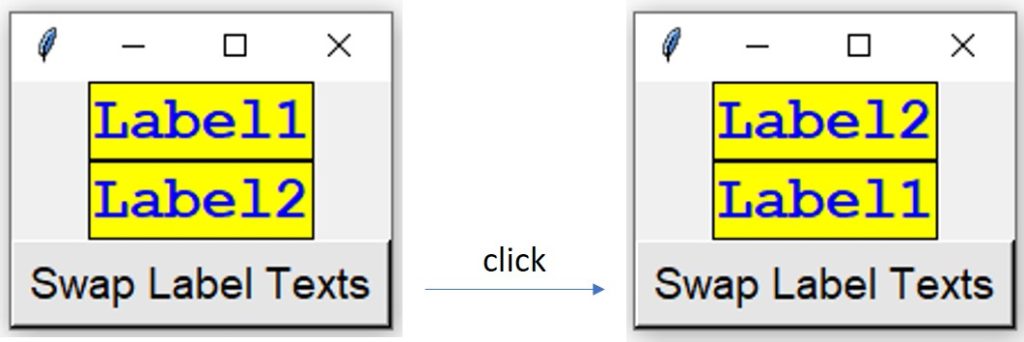
The topic of developing GUI applications is covered in detail in the chapter „Design and Development of a Graphical User Interface” in the e-book Python Knowledge Building Step by Step. This chapter is especially recommended for those who are not yet familiar with the tkinter module, as learning it from the official documentation alone can be a bit challenging.